888-258-7913



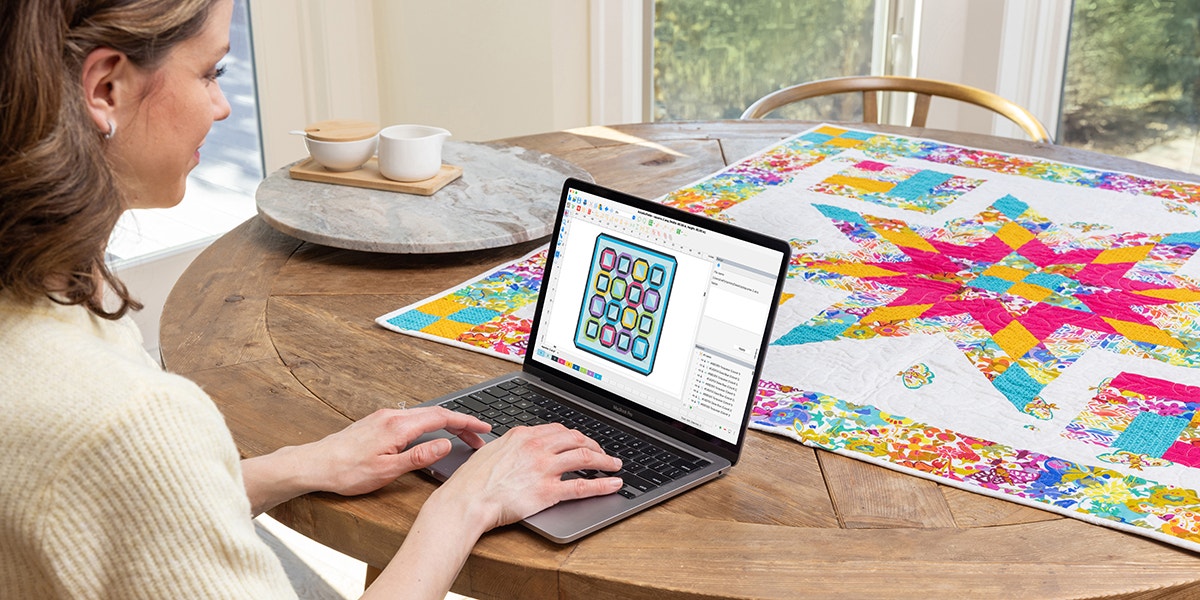
AccuQuiltable® quilt design software keeps getting better and the AccuQuiltable Strip Builder module is proof. Strip Builder brings AccuQuilt’s popular GO! Strip Cutters fully into the digital design experience, so you can plan, visualize, and build quilt projects using the strip dies you already own.
Strip Builder takes AccuQuiltable further, giving GO! Strip Cutter users the full design capabilities their dies have always been capable of.
What Is AccuQuiltable Quilt Design Software?
AccuQuiltable is AccuQuilt’s dedicated quilt design software for Windows and Mac. It connects your physical GO! dies directly to a digital design workspace, letting you plan quilt layouts, calculate yardage, experiment with color and fabric, and generate cut-ready patterns—all before cutting a single piece of fabric.
AccuQuiltable is available in modules, so you can start with what you need and expand your capabilities over time. The core module is AccuQuiltable Block Maker, which provides access to GO! Qube and Companion shapes and blocks, the Fabric Calculator, and full pattern design and saving capabilities.
-
 AccuQuiltable Design Software - Block MakerSpecial Price $239.99 Regular Price
$269.99You Save $30.00 -
 AccuQuiltable Design Software - Strip BuilderSpecial Price $49.99 Regular Price
$59.99You Save $10.00

What Is the AccuQuiltable Strip Builder Module?

Strip Builder is a dedicated add-on module for AccuQuiltable that fully unlocks the design potential of GO! Strip Cutter dies. Prior to Strip Builder, Strip Cutters were listed in AccuQuiltable for borders and sashing calculations—but their versatility ended there. Strip Builder changes that entirely.
With Strip Builder, you can:
- Design with strips of any custom length using your GO! Strip Cutter dies
- Cut squares, rectangles, and more from a single strip die
- Build complete quilt layouts using nothing but a strip cutter if that’s the only die you own
- Access seven pre-made blank quilt canvases—from baby quilt to king size—ready for your designs
- Use pre-made design templates filled with patterns, ready for you to apply color or fabric
- Browse and apply fabrics from the built-in library, including Moda Grunge fabrics (Block Maker Required)
Important: While you can track your dies and build designs with Strip Builder alone, you’ll need AccuQuiltable Block Maker to create with all GO! Qube and Companion shapes, the Fabric Calculator, and full pattern saving capabilities.
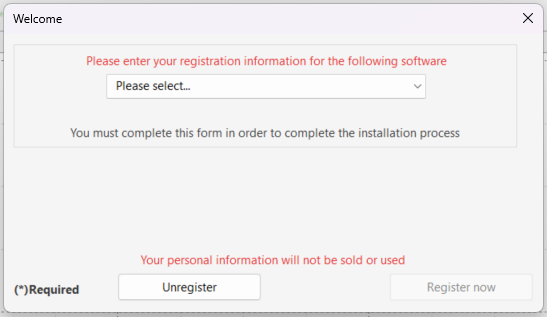
Already own AccuQuiltable Block Maker? Adding Strip Builder takes just a few minutes.
You can purchase the Strip Builder module from your local AccuQuilt retailer or at accuquilt.live. Once you have your activation code:
- Open AccuQuiltable Block Maker or Basic Tools on your computer
- Select Help, then Activation
- In the Activation box, select the Strip Builder module
- Follow the prompts and enter your activation code
- Restart your computer if prompted
Once loaded, you’ll see a new green strip icon at the top of the program. That’s your gateway to the blank quilt canvases and design templates.
How to Start Designing with AccuQuiltable Strip Builder
Once Strip Builder is active, here’s how to start building your first design.
Step 1: Open a Quilt Canvas

Select the green strip template icon and choose one of the seven pre-made blank canvases—baby quilt, throw, twin, queen, king, and more. Each canvas is a blank design space scaled to that quilt size and ready for your creativity.
Step 2: Find Your Strip Dies
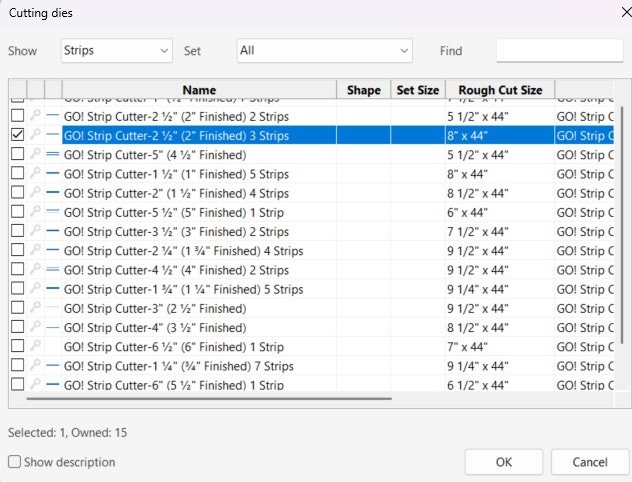
Select the die icon (the kite shape) on the far left to open the die library. Use the Search feature at the top, choose “Show” and select “Strips” to filter to all available strip dies quickly.
To mark the dies you already own, click the key icon next to each die in your collection—they’ll turn gold. This helps you design only with what you have on hand.
Step 3: Select a Die and Choose Your Strip Length
Click the checkbox next to your chosen strip die, then click OK. A second dialog will appear asking for the finished length you want to work with. For example, select the 2 ½” Strip Cutter die and enter a finished length of 18”. Click OK and the shape appears on your canvas. Since the cut strip finishes to 2” with a ¼” seam allowance, the strip will be placed on your workspace as the finished size of 18” x 2”.
To design with the 30°, 40°, 60° and 90° angle cuts, simply select the desired shape from Find Your Die.
Step 4: Build Your Design

Click and drag your shape to position it, then add more shapes by repeating the process. Copy and paste pieces, give them different colors, and keep building. The canvas updates in real time as your design takes shape.
If you need to edit a strip length that has already been placed on the workspace, you can do so by using the “Change Strip Length” icon next to the Strip Template icon. First select the strip you want to change then click the length icon. This will bring up a window to enter the new length.
Using AccuQuiltable Strip Builder Design Templates
Don’t want to start from a blank canvas? Strip Builder includes pre-made design templates featuring existing AccuQuilt patterns built with strip dies—ready for you to apply your own colors.
To use a template:
- Select a template design from the Strip Template menu
- Click the Fill with Color icon and select a color chip
- Click on any section in the template to fill with color
- Hover over any icon you don’t recognize to see a tooltip label
Combining Strip Builder with Block Maker unlocks even more design tools including the fabric library. The built-in fabric library includes options like Moda Grunge, so you can see a realistic preview of your finished strip quilt before cutting a single piece of fabric.
Learning AccuQuiltable Software: Resources for Every Level
Whether you’re opening AccuQuiltable for the first time or just need a refresher on Strip Builder, AccuQuilt has learning resources to get you up and running quickly.
- In-software Help: Open AccuQuiltable, select Help to access a user-friendly manual and built-in tutorial videos
- accuquilt.live: Visit the Discover section for video tutorials
- AccuQuilt YouTube Channel: Free how-to videos for all AccuQuiltable modules
All three resources cover both new users and experienced quilters—you’ll find everything from getting-started basics to advanced design techniques.
Frequently Asked Questions About AccuQuiltable Strip Builder
What is AccuQuiltable software?
AccuQuiltable is AccuQuilt’s quilt design software for Mac and PC. It connects your GO! die collection to a digital workspace where you can design quilt layouts, experiment with color and fabric, calculate yardage, and create patterns—all before cutting.
What does the AccuQuiltable Strip Builder module do?
Strip Builder fully unlocks your GO! Strip Cutter dies for digital quilt design. You can design with strips of any length, create with squares, rectangles and diamonds from a single die, access pre-made quilt canvases in seven sizes, and use ready-to-fill design templates—all within AccuQuiltable.
Do I need AccuQuiltable Block Maker to use Strip Builder?
You can purchase and use Strip Builder on its own to track your dies and build basic designs. However, to access all GO! Qube and Companion shapes and blocks, the Fabric Calculator, and full pattern saving capabilities, you will need AccuQuiltable Block Maker.
What’s the difference between Strip Builder and Block Maker?
AccuQuiltable Block Maker is the core module that provides access to the full AccuQuiltable design system—all GO! Qube and Companion shapes, blocks, the Fabric Calculator, and pattern saving. Strip Builder is an add-on module that specifically unlocks the full design capabilities of GO! Strip Cutter dies, including custom strip lengths, pre-made quilt canvases, and design templates.
Which GO! Strip Cutter dies work with Strip Builder?
Strip Builder works with all GO! and GO! Grizzly Strip Cutter dies available in the AccuQuiltable die library. Use the Search feature inside the software—filter by “Strips”—to see the complete list of compatible dies.
Is AccuQuiltable compatible with Mac and PC?
Yes. AccuQuiltable software, including the Strip Builder module, works on both Mac and PC. It is not compatible with tablets or iPads—a laptop or desktop computer is required.
Can I use Strip Builder on a tablet or iPad?
No. All AccuQuiltable software modules, including Strip Builder, require a laptop or desktop computer. They are not compatible with tablets or iPads.
How do I add Strip Builder if I already own Block Maker?
Purchase the Strip Builder module from your local AccuQuilt retailer or at accuquilt.live. Then open Block Maker, select Help and Activation, choose Strip Builder from the module list, and follow the prompts to enter your activation code. A computer restart may be required before the module is accessible.
Can I add my own fabrics to AccuQuiltable?
Yes. You can add your own fabrics to the AccuQuiltable library using Block Maker. Tutorial videos covering the steps to do this are available in the in-software Help section, on accuquilt.live under Discover, and on AccuQuilt’s YouTube channel.
Where can I buy AccuQuiltable Strip Builder?
AccuQuiltable Strip Builder is available at accuquilt.live and through your local authorized AccuQuilt retailer.
Start Designing with Your GO! Strip Cutter Dies
AccuQuiltable Strip Builder turns the GO! Strip Cutters you already own into a full digital design tool. Get started at accuquilt.live or pick up Strip Builder at your local quilt shop.